How project time is attributed
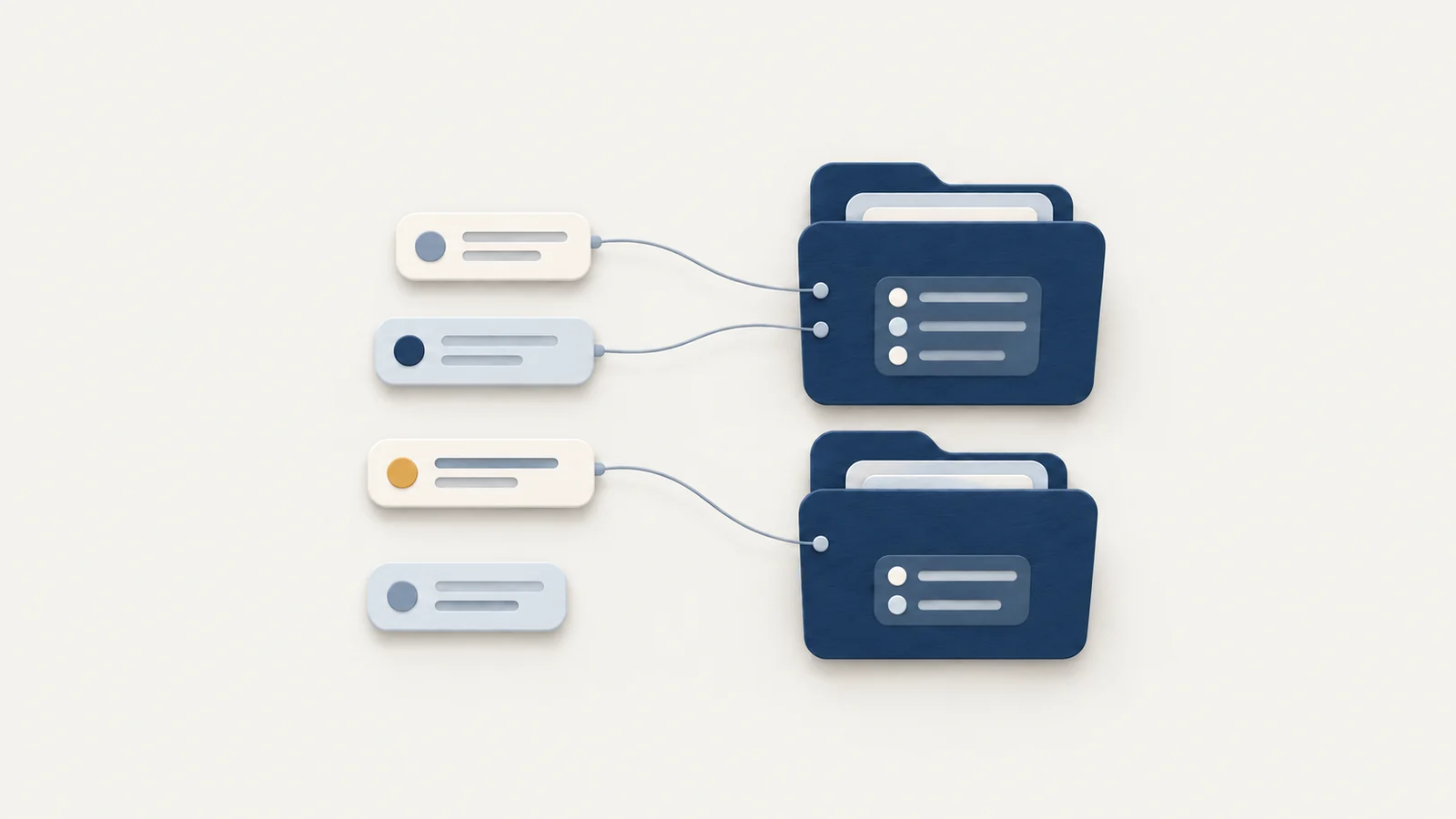
One terminal, browser and AI tool can serve several projects in the same afternoon. Hina reads a project name from window titles first, fills some gaps from surrounding activity and your AI sessions, and leaves the rest unassigned instead of guessing.
Where a project name comes from directly
Hina looks for a project in the window title and the document path of each recorded window. A terminal title such as www/mole-mac or ~/www/mole-mac gives the name mole-mac. A document under a folder called www, src, code, repos, projects, workspace, developer or dev takes the next path segment as the project. A browser address on github.com or gitlab.com takes the repository name from the path. As a last resort, a title that ends with a file name followed by a dash and a repository name is read the same way.
Names are lowercased, so Mole and mole are one project. Folder names that describe structure rather than work, such as Documents, Downloads, node_modules or dist, are ignored, and so are purely numeric names. All of this depends on window titles being recorded. Without Record window titles and page paths in the Privacy tab, the project list stays empty and says why.
How the gaps are filled
Plenty of work has no project in its title. A terminal running an AI agent may show only a cursor, and a browser tab with documentation names no repository. Hina fills some of this in two limited ways. If you leave a project's window for another app and return to the first app within three minutes, the windows in between that name no project of their own, such as documentation you were reading, are credited to that project.
The second way uses AI sessions. With Read agent sessions turned on, Hina knows when you sent each prompt to Claude Code, Codex, Cursor or Antigravity and which working directory that session ran in. Work-category windows within about five minutes of a prompt are attributed to that session's project, and when the foreground app is a terminal or an AI desktop app, Hina first asks which session was busy at that moment. If several projects were running and the most recent one cannot be told apart, the time stays unassigned. Browsing and chat are never filled this way.
A single stretch of activity can be split where the evidence changes, so one terminal visit may count partly for one project and partly for none. The original record stays intact, and the Day, Week and Month views and the report all read the same slices.
Direct and inferred time are shown apart
In the project list, each project's total is divided into time “From titles” and time “From surrounding activity”, the label Hina uses for inferred time. On the Trail, an attributed row that came from inference is marked as inferred. A tooltip on the project list also gives the share of active time that maps to any project, and it notes that part of that share is inferred from activity and AI records.
Read the two numbers differently. Time from titles is the stronger claim, because the window itself named the project. Inferred time is a reasonable reading of what happened around it, and a project whose time is mostly inferred deserves a second look before you quote it. If the coverage figure is low, check whether window titles are being recorded before assuming the work was scattered.
Check one known day and know the limits
Choose a day when you know what you worked on. Compare the Trail, the project list and the report, since they should tell the same story.
Keep two limits in mind. A multi-pane terminal exposes the title of the focused pane only, so work in a background pane can land in the wrong project or in none. Hina reads agent history from Claude Code, Codex, Cursor and Antigravity, so work in other tools gets no help from this second route and relies on window titles alone.